ProZ.com frequently asked questionsProfiles Main Main
1 - Profiles: general Video tutorial: "Getting the most out of your ProZ.com profile" 1.1 - What types of profiles are available at ProZ.com? When registering at ProZ.com you can create a profile of any of the following account types:
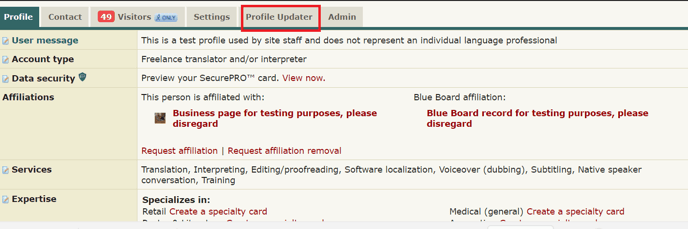
1.1 - How can I set my account type? You can set your account type by clicking on Profile updater in your main profile page, choosing among the profile types available and clicking on Save and update profile at the bottom of the page. 1.2 - Which account type should I choose?
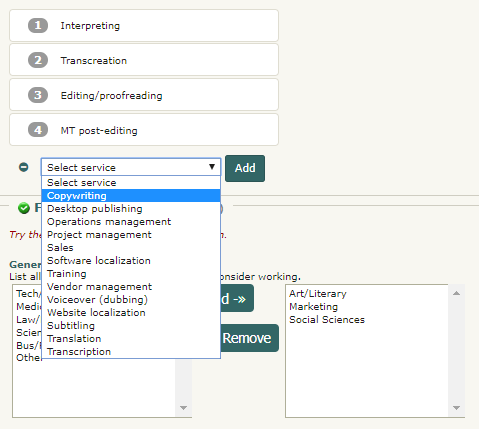
1.3 - At the time I registered I selected a certain account type, but now I think a different account type will reflect my current situation more accurately. Can I change my account type? Yes, you can edit your account type to suit your preferences from the ProZ.com Account section of your Profile updater. Make sure to click on Save and update profile once you are done. 1.4 - I am listed as an agency but I also work as a freelancer, should I have two profiles? No, you don't need to have two profiles. Many agencies in the site are listed as both agencies and freelancers. To be recognized as both, all you need to do is go to your Profile updater and select the option Freelancer and outsourcer for Account type. 1.2 - How do I begin completing my new profile? Go to your Profile updater to update your profile, including contact information, financial information, and more. Make sure to click on Save and update profile once you are done. 2.1 - How can I edit/update the information in my profile? There are two ways of editing the information in your profile:
2.2 - Why are certain fields classified as required or encouraged? The classification of a profile field as required or encouraged (as opposed to simply available) corresponds to the possible contribution of that field to the goal of helping to ensure that a profile owner gets the most out of ProZ.com. 1.3 - What is my profile ID/number? Your profile ID/number is the last number at the end of your profile URL. To see it go to My profile and check the last number shown in the URL of your profile box at the top left of your profile. To create a profile simply register for free at www.proz.com/register 3.1 - What link should I provide my customers to direct them to my ProZ.com profile? You can find this information in your own profile, above your picture and username. 3.2 - Can I link to my ProZ.com profile from my personal website? Can I use the logo when I do so? Yes. You can find a comprehensive description of how to link to your profile in this page. 1.4 - How do I enter my first and last names in my profile? To enter your real name in your profile, visit the ProZ.com account section of your Profile updater and enter your first and last names in the Contact first name and Contact last name write-in fields respectively. Finally, click on Save and update profile at the bottom of the page to save your data. 4.1 - How do I hide or show my real name in my profile? You can chose to show or hide your real name in your profile at any time. Note that name changes may take up to one hour to become effective. 4.2 - Can I show my real name to outsourcers and my username to other users? Yes, all you have to do is enter your real name in your profile and choose the option to show it only to outsourcers in your Profile updater. Please note that this setting is based on account type, so your real name will not be shown to outsourcers who are not logged in, or those who have not properly classified their profiles. 4.3 - I do not want my real name to show in search engines. How can I change this? Profiles, similar to the forums and KudoZ, are public. This means that they can be indexed by search engines and displayed as part of search results. If you have chosen to show your real name as your site name (profile name) it is then possible that your real name is then shown as part of search engine results. If this is the case, and you want your name to stop showing in search engines results, start by changing your site name (profile name) at ProZ.com. To do so, go to your Profile updater and change your site name settings by selecting Show username, as used in login. Remember to click on Save and update profile at the bottom of the page. Note that this change may take a few minutes to become visible in your profile page. 4.4 - I changed my site name but search engines still show the old name. Why? When you chose to display a given site name (real name or username), it may be cached by some search engines. Thus, if you decide to change this name later, or to change visibility permissions for your site name, it will take a certain period of time for search engines to update their cache and stop showing the old profile or site name. 1.5 - Can I control the visibility of the information in my profile? Yes, you can control what profile visitors see in your profile in two ways, depending on the type of information you would like to show or hide:
5.1 - How do I change visibility settings for the Blue Board entries made by this user section of my profile? You can chose to hide your clients names or location by selecting the None visibility option for these areas from the Feedback section of your Profile updater. 1.6 - How can I see my profile as visitors would see it? To view your profile as any visitor would view it, simply click on Force visitor view at the top of your profile page. To go back, just click on Return to owner view. 1.7 - How can I change the title displayed in my profile? In order to add/edit the title displayed in your profile, go to the Settings tab and select the Search engine settings section. In this way you can edit the title displayed in your profile or leave this field blank to use a ProZ.com search engine optimized title. Please note that search engine indexes only show up to 60 characters. 1.8 - Can I add a tagline to my profile? Yes. You can add a short phrase that sums up your most important attribute as a service provider or outsourcer (or tagline) to show below your site name in your profile and in the directory. To enter a tagline, click on the small edit icon next to Edit your tagline, below your profile name. This will take you to the Marketing and promotion section of your Profile updater. Type in your tagline and then click on Save and update profile at the bottom of the page to save the changes. 1.9 - Can I add a user message to my profile? Yes. To add a user message to your profile, simply click on the small note pad next to User message in your profile main page, enter your message and click on Save. Note that user messages no longer support HTML tags. 1.10 - What kinds of content (text, HTML, etc.) can I put in my profile page? Only plain text and basic HTML can be used in profile pages. JavaScript, HTML tables, and other advanced techniques will usually not work. 1.11 - Can I use HTML in my personal information (first name, last name, username, etc.)? No, only plain text may be used in your personal information. HTML characters such as < or > will be converted to plain text. This also applies to your keywords and tagline. 1.12 - Can I control the language in which visitors see my profile? Yes. Go to the Settings tab in your profile, and click on Search engine settings. Under the default language, choose the language in which you would like visitors to view your profile and check the box to force that view. Any visitor who comes from another site and is not logged in to ProZ.com will automatically see your profile in the language you chose. 1.13 - Can I accept payments from my profile? Yes. You can accept payments directly from your profile using ProZ*Pay. You can also use other methods, as detailed in the related FAQs. 13.1 - How can I accept PayPal payments through my profile page? First, you need to set up a Paypal account. Go to PayPal and follow their sign-up steps.
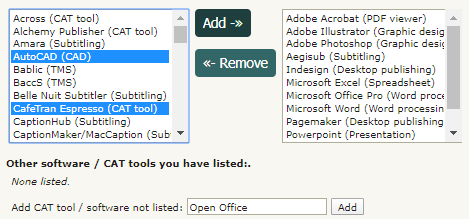
13.2 - How can I accept Skrill payments through my profile page? Go to your Profile updater, click on the Financial section, and then enter the email address you used to set up your Skrill account in the Skrill email space provided under Payment methods. Make sure to click on Save and update profile once you are done. 13.3 - Can I accept other payment methods through my profile? Please contact the ProZ*Pay team or submit a support request to set up your bank account or other pay-out methods and receive payments directly through ProZ*Pay. 1.14 - Can I receive files through my profile? Yes. You can receive files sent to you through your profile page via the Send file option at the top of the addressee's profile page. 1.15 - How do I report my translation education in my profile? To report your translation education, go to the Professional history section of your Profile updater and select the highest translation-related degree you have earned from the drop-down menu and then specify the issuing school. Finally, click on Save and update profile to save this new information. 1.16 - How do I report years of experience in my profile? To report your experience in translation, go to the Professional history section of your Profile updater, specify your years of experience and the year in which you started working as a professional translator and then click on Save and update profile to save this information. 1.17 - I need help with completing my profile. Who should I contact? Please watch this video tutorial and try to apply it to your profile. 1.18 - How do I delete my profile? You can delete your profile by going to the Settings tab from your profile page. Once you've arrived to your settings tab, you will need to scroll down and click on the link that reads Close account which then will enable to remove your profile entirely. Once you remove your profile, email notifications will automatically stop. 2 - Profile picture 2.1 - How do I upload a profile photo or image? The easiest way to upload or update your profile photo is by clicking directly on the photo box on your profile. This will take you to the section of your Profile updater designed for that purpose. You will be able to take a photo with your webcam or upload a file up to 1MB from your computer. If your picture is not square, you'll be offered the option to crop it. 2.2 - Is there a limit to the kind of profile image I may use? The image(s) used in a profile should not be political, misleading or offensive in nature, and should in general respect the site's scope. Keep in mind that the image you use in your profile represents you professionally. 3 - Contact information 3.1 - How can I start completing my contact information? To start completing your contact information, go to the Contact section of your Profile updater and enter information for the following fields:
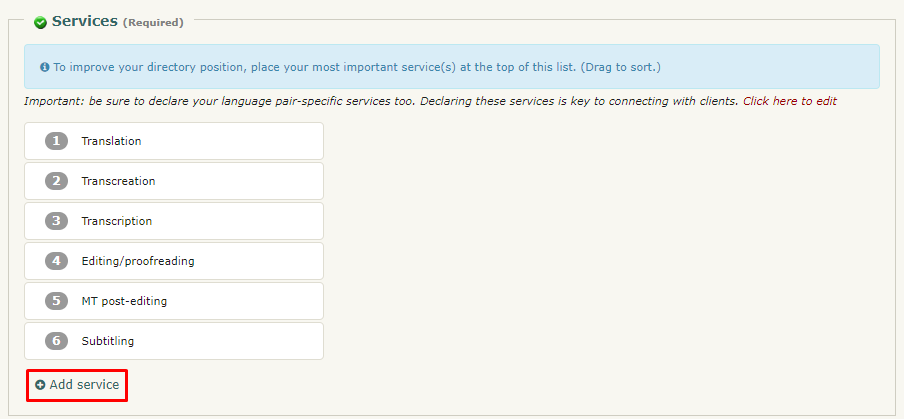
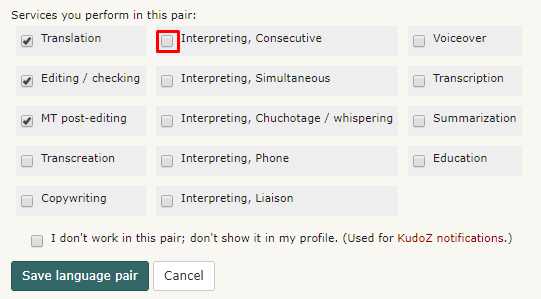
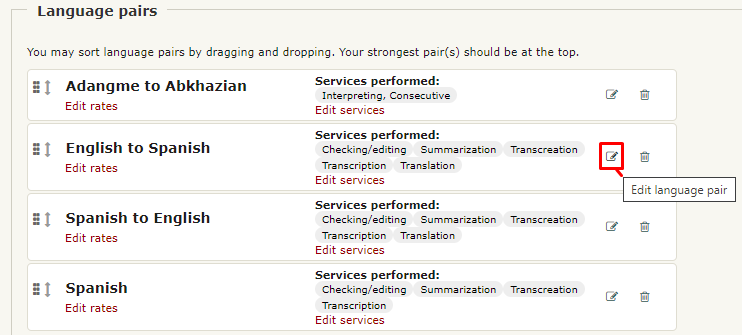
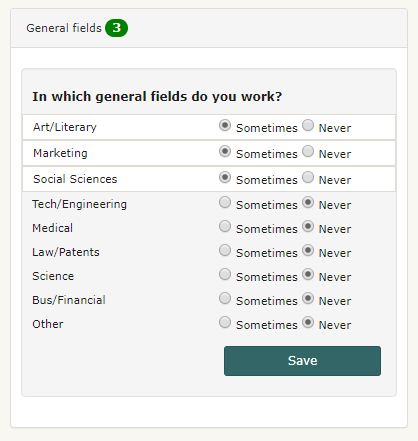
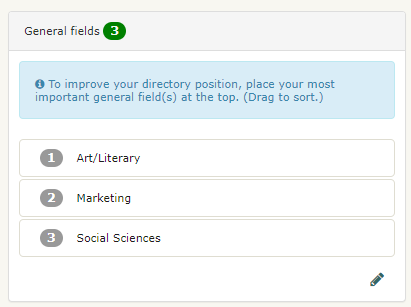
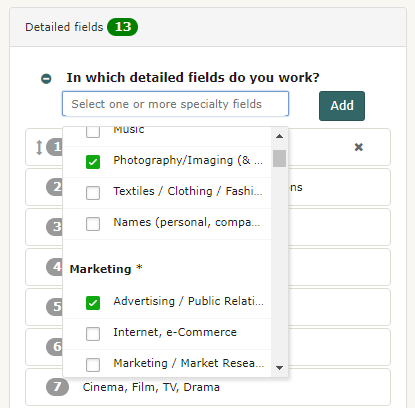
Once you have entered information for all these fields, simply click on Save and update profile at the bottom of the page to save your changes. Note that you can set visibility permissions for your contact information by using the options available in the Show to drop-down menu next to each field. You can also decide not to enter the information, in which case you need to indicate it so the area will be marked as complete. Click or check the I don't want to enter... option.  3.2 - I have edited my contact info but the quick profile does not show it. ProZ.com utilizes more than one web server. When you uploaded new information in your Profile updater, it can take between several minutes and a half hour for it to be copied to all the web servers. During this time, you may notice a blank or outdated data where you entered the information. Please give it some time before submitting a support request. 3.3 - Can I make my email address visible in the Contact section of my profile? No. This is designed as a means of security, to protect your address from spammers and scammers, and is why the profile email sending function (the little envelope at the top of your profile) is used. If you choose to publicly post your email address, you may do so for example in the About me section or CV of your profile. Please be aware of the risks of doing so. 3.4 - How do I add Skype to my profile page? You can add Skype to your profile by going to your Profile updater and editing your Contact information. 3.5 - How can I set my location in the map? You can enter your location on the map by visiting this page and following the steps described. You can also edit your location by clicking on the edit icon below the map image in your profile. 3.6 - How can hide or show the map in my profile? You can show or hide the map in your profile by clicking on the visibility toggle 3.7 - Can I control the online status shown in my profile? Yes. If you don't want your online status to show (via the P icon at the top of your profile page), you can choose to hide it from this page. You can also add, delete or hide other instant messaging icons in your profile. Remember that showing your online status can be a useful way of letting people you work with know you are available via profile mail or ProZ.com Instant Messaging. 3.8 - ProZ.com instant messenger online status is not showing in my profile. Why? If the small P icon that shows your online status and serves as an instant messenger tool is not showing in your profile, check your instant messenger settings to make sure you have chosen to show your online status (if so, the link option next to ProZ.com Online Status should read Hide). 3.9 - How do I add a Twitter feed to my profile page? You can add a Twitter feed to your profile in your Profile updater, under the Contact tab. 4 - Languages 4.1 - How do I report a new language pair in my profile? To report a new language pair in your profile go to the Languages section of your Profile updater. First, make sure that you have declared all of the languages you speak, selecting them from the drop-down menu at the top of the page. 4.2 - How do I change the order of language pairs reported in my profile? To change the order of language pairs reported in your profile, go to the Languages section of your Profile updater, then click and drag each pair to the position you would like them to appear in your profile and click on Save and update profile at the bottom of the page to save the changes applied. 4.3 - How do I enter languages of interest? To enter a language of interest in your profile, just enter a new language pair from the Languages section of your Profile updater as you would normally do (following the steps described here). Before saving the pair, check I don't work in this pair; don't show it in my profile. Select this last option and finally click on Save language pair to save the changes applied. 4.4 - How do I report my native language(s)? You can report your native language or languages (with a maximum of two) from the Languages section of your Profile updater. In the Native language field, select your native language(s) from the menu available to the left and click on Add. Then, simply click on Save and update profile at the bottom of the page to save your changes. 4.5 - Can I report my language variants? 5.1 - How can I report my language variants? To report your language variants, head to the Languages tab of your Profile updater. When you hover over each language, you'll see a pencil-shaped button that will allow you to add variants. Reporting your variants is optional and will not affect your profile completeness. 5.2 - My language variant is not listed. If your language variant is not listed, please submit a support request detailing the variant that you want to add. 5.3 - Can job posters filter by this information? No, at this time it is not possible to use language variant filters in the job posting form. However, it is now possible to filter directory searches by language variant, from ProZ Find™. 5.4 - I am proficient in multiple variants of my language, which should I add? You should add those variants that you are most comfortable with. In many cases these will be the ones that you have worked with the longest, but may in fact be those that you currently use on a daily basis. You can indicate your level of familiarity from a drop down menu when adding or editing your language variants. 4.6 - ProZ.com uvjerenje o nativnom govorniku 6.1 - Trebam deklarisati drugi nativni jezik, ili sam progriješio/-la pri unosu svog(-ih) nativnog(-ih) jezika. Molimo da podnesete zahtjev za podršku za pomoć. 6.2 - Šta je ProZ.com uvjerenje o nativnom govorniku? Uvjerenje o nativnom govorniku je oznaka koja naznačava da je ProZ.com član izvorni govornik određenog jezika. 6.3 - Šta označavaju ikonice koje su različito obojene? Plava i žuta ikonica za ProZ.com nativnog govornika ( 6.4 - Kako mogu dobiti uvjerenje za jedan jezik? Od ProZ.com članova s jednim nativnim jezikom se jednostavno traži da deklarišu svoj jezik. Da biste deklarisali svoj nativni jezik, otiđite na odjeljak za „jezike“ na svom ažuriranju profila, odaberite svoj nativni jezik s liste na lijevoj strani za odjeljak „nativni jezik“ i kliknite „dodaj“. Čim se jezik nađe na spisku s desne strane, kliknite na „sačuvaj i ažuriraj profil“ u dnu stranice, kako biste sačuvali svoj odabir. 6.5 - Kako mogu dobiti uvjerenje za više od jednog jezika? Za onog člana koji izjavi da ima samo jedan nativni jezik se pretpostavlja da on jeste nativni govornik za taj jezik, i nije potrebno da to i dokaže. Međutim, od članova koji su prijavili više nativnih jezika u budućnosti će se tražiti da dokažu svoj nativni govor svakog jezika pred drugim nativnim govornicima tih jezika. Dok se to ne realizuje, crno-siva ikonica biće pridružena nepotvrđenim jezicima. 6.6 - How many native languages can be reported? At the time being, only two native languages can be reported. There are no immediate plans to add a third language. 6.7 - Koja definicija se koristi za „nativnog govornika“? Umjesto nametanja definicije za „nativno“, PNG (PNS) program prepušta definiciju članovima. Kada pojedinac deklariše jedan lični jezik, definicija nije potrebna. 6.8 - Da li PNG (PNS) uvjerenje obavještava o tome da li neko jeste ili nije dobar prevodilac? Apsolutno ne. Nativni jezik je samo jedan faktor koji klijent može uzeti u obzir kada uzima u razmatranje prevodioca ili interpretatora. To obično nije najvažniji faktor. 6.9 - Koliko košta prijava za PNG (PNS) uvjerenje? Neće se plaćati naknada za deklarisanje sposobnosti nativnog govora u jednom jeziku. Još nije odlučeno da li će biti potrebna naknada za verifikacionu proceduru u vezi onih osoba koje deklarišu više jezika. 6.10 - Moja dva nativna jezika su u statusu provjere. Koliko dugo moram čekati da ih potvrdim? Trenutno razrađujemo strategiju. Bićete obaviješteni kada postavimo primijenjiv program 5 - Services 5.1 - How can I report the services I offer? To report the services you offer, simply go the Services & offerings section of your Profile updater and select the services you offer from the list to the left and click on Add. Once you have added your services to the list to the right, click on Save and update profile at the bottom of the page to save your services. As with all sections of your profile, you can drag-and-drop your reported services to list them in order of relevance. 5.2 - How do I add a monolingual service? Some users may choose to add monolingual services in their profiles, including checking/editing, voiceover, education, transcription, etc. To do this, simply go to the Languages section of your Profile updater, click on Add new pair and choose the same language in both the Source language and Target language drop-down menus. 5.3 - Why is it important to report services offered? Your profile is your public face at ProZ.com. It serves as your business card and directory listing, and is the first impression of you that colleagues and potential clients will have when they find you at ProZ.com. In addition to finding your profile via ProZ.com, there is also a good chance that potential clients will find your ProZ.com profile when seeking language professionals using search engines such as Google or Yahoo! —provided that you optimize your profile accordingly. So, by reporting in your profile the services you offer, you increase the chances of showing as part of search results when potential clients search by keyword (eg. translation, interpreting, training, etc.). 5.4 - Why am I not listed as an interpreter/proofreader/copywriter? Please check that you have added all your services to the Services & offerings section of your Profile updater. To improve your directory position, place your most important service(s) at the top of this list. Make sure to click on Save and update profile once you are done. 5.5 - How can I report software / CAT tools I use in my profile? You can report any software or CAT tool you use in the Services & offerings section of your Profile updater. Just select a software from the list available to the left in the Software / CAT tools section and click on Add. You can select multiple items by using the keys CTRL and shift. Once you have added all the software tools you want to report to the list on the right, just click on Save and update profile at the bottom of the page. If the CAT tool or software you want to list is not provided, use the Add CAT tool / software not listed field to report such tools. 6 - Fields of expertise 6.1 - How can I add and edit my fields of expertise in my profile? To report fields in your profile, go to the Services & offerings section of your Profile updater. To report General fields simply select a field from the list to the left and click on Sometimes to have the chosen field(s) added to the list of general fields that you work in. Once you have checked all the general fields you want to report, just click on Save. To edit your fields, click on the pencil-shaped button at the bottom right corner, and remove them by marking Never. 6.2 - Can I change the order of fields reported in my profile? Yes, you can change the order of specialty, working and interest fields you have reported in your profile from the Services & offerings section of your Profile updater. Just click on each field and drag it to the position you would like it to occupy in the list of fields. Remember to click on Save order at the bottom of the list after moving each field. 6.3 - Na koji način su oblasti stručnosti klasifikovane na ProZ.com-u? Several category structures are used throughout ProZ.com for the purpose of classifying job postings, term questions, personal areas of expertise, glossaries, and more. There are two main structures: the ProZ.com general categories (9 of them), and the ProZ.com detailed categories (over 100). 6.4 - What are the detailed categories of expertise? The detailed categories are a subject classification system developed based on the keywords used in a free entry box to describe the fields of KudoZ questions asked.
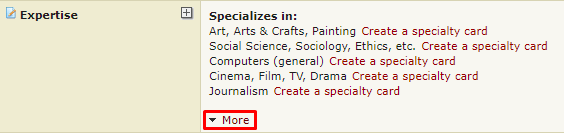
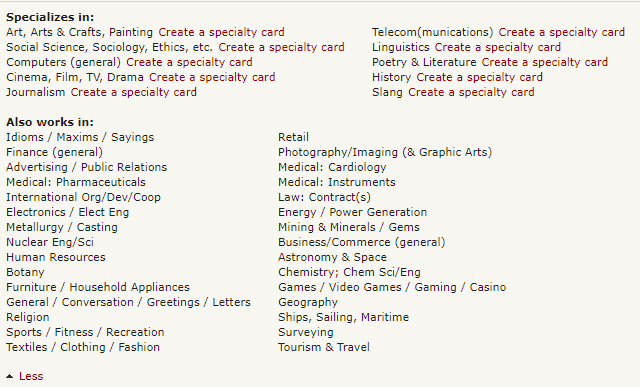
All users are advised to enter detailed fields of expertise (working and interest) in their profile pages, in the expertise section. Also, whenever possible, a detailed category should be entered at the time a new KudoZ question is posted. Furthermore, users with a sufficient number of KudoZ points can be given the right to classify questions which the asker has not classified with detailed categories, and are encouraged to do so. These users are called KudoZ editors 6.5 - How were the fields used determined? Both the general and detailed sets of disciplines were created based upon analysis of site usage patterns. The general categories are the top general categories in which jobs were posted during a period of review. The detailed categories are the top detailed categories in which KudoZ terms were posted during a period of review. 6.6 - The fields don't seem to make any sense. The taxonomy of fields used at ProZ.com reflects market characteristics. No attempt has been made to make it stand up to rigorous academic analysis. 6.7 - Why is my specialty not available? If you can't find your specialty, please submit a support request indicating which one you would liked added and then we will add it to our task list for development. Note that it is unlikely that a category would be added based upon a single request. But requests for additional categories, coupled with ongoing review of site usage patterns, will determine future changes to the category structure. 6.8 - Why are some categories shown twice —like cars and automotive? Some specialty fields or categories are repeated through the drop-down menus, because a significant number of people entered those fields with multiple names during the time that ProZ.com used to collect and review that information. In order to prevent separation of similar data, these identical or related categories are tied together in the database. So it does not matter if you choose automotive or cars; both will be treated and shown in exactly the same way thereafter. 6.9 - How many general, specialty, and working fields can I enter in my profile from the Fields of expertise page? You are allowed to enter up to 10 specialties, 30 working fields, and up to 8 of the 9 general fields available. Only 5 or less from the general field will appear on your profile page. However all your specialty fields will appear on your profile page, and your working fields will appear collapsed, available under a More button. 6.10 - What is the difference between Specialty fields and Working fields? Specialty fields are also working fields, but they are fields in which you specialize or do your best work. If your top area is, say, medicine, you should make sure it is listed as your top specialty, and you should consider accompanying this with sample translations related to medicine in your profile. Outsourcers can look for language professionals by specialty fields, so this can be important in meeting potential clients. 6.11 - Does the order of my specialty fields affect my directory positioning? The ten fields that you have reported first will be considered your specialty fields. The following thirty fields will be considered your working fields, and the remaining fields will be considered interest fields. In directory searches for specialists in a field, those who have reported that field in their top-ten will have preferential positioning over those who marked it as working. Those who placed it between the 11th and 40th spots will in turn be given a priority placement over the users who reported it as interest. 6.12 - Why can't I enter more than 10 specialty fields (and 30 working fields)? It is possible to select 10 specialty fields and 30 working fields, which means you may appear in the directory for a total of 40 fields. While we recognize that there are translators who are able to work in more fields, users are asked to select their best 10 (and after that, their next-best 30). ProZ.com is based on the idea of specialized translation and this system is designed around the idea that one can only be a specialist in so many fields at once. 6.13 - Why aren't my detailed fields of expertise displayed on my profile page? Only the specialization fields that you select as specialty and working will appear on your profile page —that is, the first 40 fields you selected. 7 - Credentials 7.1 - Šta je "dokument kvalifikacije"? Razna udruženja, škole i druga tijela širom svijeta nude prevodiocu ono što ProZ.com obično naziva "dokumenti kvalifikacija". Oni mogu uključivati "certifikate", "diplome" ili druge oblike kvalifikacije. 7.2 - Na koji način se dokumenti kvalifikacija koriste na ProZ.com-u? Moguće je da članovi preko svojih profilnih stranica prijave da su stekli takve dokumente kvalifikacija. Shodno tome, objavljivači poslova imaju mogućnost da ograniče svoje objave poslova za one članove koji su prijavili svoje dokumente kvalifikacija. (Oni ne mogu ograničiti objave poslova za one s verifikovanim dokumentima kvalifikacija). Također, pretraživanja direktorija mogu biti ograničena na one s prijavljenim ili verifikovanim dokumentima kvalifikacija. 7.3 - Kako da prijavim svoje dokumente kvalifikacija? Da biste prijavili dokument kvalifikacije, prvo otiđite na Program za ažuriranje profila i kliknite na 'Dodaj dokumente kvalifikacija' pored odgovarajućeg jezičkog para, prijavljenog u odjeljku Jezički parovi. Otvoriće se prozor koji će vam omogućiti da prijavite bilo koje profesionalne dokumente kvalifikacija, certifikate ili akreditacije koje ste stekli od priznatih nadležnih institucija. 7.4 - Do I have to submit a copy of my credentials for verification? The credential filter used in jobs is based only on whether you have declared your credentials. Verifying your credentials benefits your profile and you, and is an added assurance to potential clients that you are a qualified professional. 7.5 - Kako mogu da verifikujem dokument kvalifikacija? ProZ.com vrši verifikaciju dokumenata kvalifikacija u vezi jezika koje su prijavili ProZ.com članovi. Trenutno, sljedeći dokumenti kvalifikacija mogu biti verifikovani:
Prvo, prijavite svoje dokumente kvalifikacija na vašem programu za ažuriranje profila tako što ćete kliknuti na 'Dodaj dokumente kvalifikacija' pored odgovarajućeg jezičkog para, prijavljenog u odjeljku Jezički parovi. Otvoriće se prozor koji će vam omogućiti da prijavite bilo koje profesionalne dokumente kvalifikacija, certifikate ili akreditacije koje ste stekli od priznatih nadležnih institucija. Drugo, pošaljite u prilogu svoj(-e) dokument(-e) kvalifikacija preko našeg online sistema za podršku, što je i najbrži način da vaši dokumenti kvalifikacija budu verifikovani. Molimo da podnesete odmah, zahtjev za podršku uz svoj prilog. Također, možete poslati kopije svojih dokumenata kvalifikacija (uključujući engleski prijevod, ako je potrebno) ProZ.com-u, na jedan od sljedećih načina:
Ako šaljete kopije preko regularne pošte ili faksom, molimo da podnesete zahtjev za podršku da vaši dokumenti kvalifikacija budu verifikovani. 7.6 - Does ProZ.com verify memberships in organizations or associations? As they are in general temporary, and subject to change, ProZ.com is unable to verify memberships in organizations or associations. These should be reported under Memberships instead, by going to the Memberships tab of your Profile settings. 7.7 - Does ProZ.com verify reference letters from colleagues or employers? No. Only accreditations issued by authorities and language-related academic credentials or degrees issued by accredited educational institutions can be verified. 7.8 - I took a language course or exam. Can I declare it as a credential? Yes, you can declare your language courses and exams, but these will be monolingual credentials. This means that they prove your proficiency in a single language, not your ability to translate between a specific combination of languages. 8 - Continuing professional development (CPD) tracker You can report and track all of your continuing professional development (CPD) activity through your ProZ.com account. You can keep it as a register just for yourself, or display it as another way to differentiate yourself to potential clients and collaborators. Paying ProZ.com members also have the ability to add certificates of completion where relevant, and request verification of CPD items from ProZ.com staff. 8.1 - What kinds of activities can be reported as continuing professional development (CPD)? At the moment, there are nine different categories of CPD available: 8.2 - Can I report paid projects I've worked on, or training classes I've given? In general, no. ProZ.com provides ways of reporting and using commercial work you have done to attract potential clients (for example, via the "What I am working on" and project history features), and if you provide paid training to others you can also leverage that through ProZ.com already. For the most part, to be considered CPD, the activity or work should be non-commercial. 8.3 - Can I report courses/credentials which are not purely linguistic in nature? Yes. Some activities which may not be purely related to translation or interpreting can still form part of your CPD. For example, if you specialize in technical translations, courses taken, events attended, or credentials achieved in that field are proof of your continuing professional development in the field in which you provide your linguistic services, and they can be reported and may be eligible for verification as well. 8.4 - Can I report language learning courses? For the moment, no. Since language learning courses generally represent efforts which are pre-commercial work in that language, they are not included for now. From a potential client standpoint, whether you are learning Japanese or not is of little interest, as opposed to showing you are already proficient enough to work commercially in Japanese and are improving your skills in, say, interpreting in Japanese, or in the Engineering field in that language. 8.5 - Can I report CPD activities I have done through other organizations or programs which offer or track CPD? Yes. The purpose of the ProZ.com CPD system is to allow you to track all of your continuing professional development in one place, and to use that as one more way of differentiating yourself to potential clients if you so choose (or however else you see fit). 8.6 - What kinds of mentorships can be reported? Any mentorship performed under a program which provides some kind of formalized structure to a mentor pairing can be reported. For verification purposes, you may need to submit proof of the pairing, duration of the mentorship, etc. 8.7 - What about memberships in organizations? Memberships can already be reported in your profile in the Memberships section, and are not part of your CPD. Some activities in which you engage as a member of different organizations, or in order to maintain membership there, may be considered as CPD, however. 8.8 - If I add a certificate of completion to a CPD entry, who can see that certificate? Your certificates of completion will be visible to you and to staff. They are used to verify entries, and for the moment are not displayed publicly (if that becomes an option later on, you will be able to choose if you display them). 8.9 - How will reporting and verifying CPD benefit me? If you do continuing professional development on at least an informal basis, it is nice to be able to keep track of it and have it in mind when lining up your professional objectives. 8.10 - How does the ProZ.com CPD point system work? When you add CPD activity, it is eligible for ProZ.com CPD points. Here is how it works:
Remember that CPD entry verification is available for paying ProZ.com members, so earning verified points will also be restricted to those who are members. Non-members will only see potential verified points. Points are assigned per activity like this:
8.11 - What are CPD points used for? At the moment, no plans have been made for the application of the CPD point system. Since entry verification (and therefore points) is limited to paying members, only a relatively small population of the ProZ.com community has access to it. For now, the plan is to let the CPD system work on its own and make improvements where needed. You can use the points earned from verified entries in the same way as you can use your CPD dashboard as a whole: as one more indicator to potential clients and collaborators that you are performing certain activities outside of your commercial work to improve and keep yourself up to date as a professional. 8.12 - I don't want to participate in the CPD feature at ProZ.com. No problem! Some people don't do CPD, either because they don't have the time, or because they don't have the desire to. By default, the link to your ProZ.com CPD display is hidden in your profile, and you can show or hide it at will (you can also choose to enter CPD activities but hide them so that they are only visible to you). The CPD feature is there for those who are doing CPD activity and wish to make use of it. 9 - Verified Identity Program 9.1 - Šta predstavlja Program za verifikaciju identiteta (VID)? Članovi ProZ.com osoblja, moderatori i ostali volonteri su pokrenuli program za potvrdu identiteta zainteresovanih korisnika sajta. 9.2 - Na koji način mogu izvršiti verifikaciju identiteta svog profila? Stranica aplikacije za verifikaciju identiteta pruža dva načina da dobijete verifikaciju svog identiteta. 9.3 - Kakav je vremenski raspored za program verifikacije identiteta (VID)? Potrajat će nekoliko mjeseci da identiteti, za značajan postotak ProZ.com zajednice, budu verifikovani. Do tada, nikakve specijalne prednosti neće biti dodijeljene korisnicima s verifikovanim identitetima. 9.4 - Zašto moj identitet više nije verifikovan? Ako na svom profilu promijenite svoje ime, srednje ime, ili prezime nakon što je Vaš identitet već verifikovan, vaša verifikacija će biti poništena. Da biste ponovo postali verifikovani, morat ćete podnijeti zahtjev za podršku. 9.5 - Kako da verifikujem svoju identifikaciju (VIDed) na powwow skupu? Da biste verifikovali svoju identifikaciju (ID) na powwow skupu, od strane člana koji ima ovlaštenje da verifikuje identitete, morate toj osobi pokazati identifikaciju sa slikom, kada se s njim ili njom lično susretnete. 9.6 - Kako mogu dobiti ovlašćenje za verifikaciju identiteta drugih korisnika? Ako je Vaš sopstveni identitet već verifikovan, možete se prijaviti za ovlaštenje da biste mogli vršiti verifikaciju identiteta (VID) ostalih korisnika, putem podnošenja zahtjeva za podršku. 9.7 - Izvršio/-la sam uplatu s kreditnom karticom, ali mi identifikacija (ID) još nije verifikovana. Kada se, koristeći opciju plaćanja, podnese zahtjev za verifikaciju identiteta, ime na Vašem profilu pod „pravim imenom“ se treba u potpunosti podudarati s onim kojeg imate na svojoj kreditnoj kartici ili PayPal računu. 9.8 - I received a message stating that my identity could not be verified. Why? If you have a "Translation company" account type, your identity will not be verified. Since the purpose of confirming members' IDs is to increase mutual trust across the site, in particular among users who don't know each other personally, only "Freelancer", "Freelancer and outsourcer" and "Student" accounts will be considered for ID verification. 10 - Rates 10.1 - Kako da unesem svoje tarife? Tarife se unose na stranici za ažuriranje profila (kliknite ovdje). U odjeljku 6, „Standardne tarife“, možete unijeti svoje tarife, valutu i vidljivost, te takođe primijeniti ove informacije na sve jezičke parove koji su navedeni na Vašem profilu. Također, nakon što su Vaše standardne tarife unesene, možete urediti pojedinačne tarife za svaki od svojih jezičkih parova. 10.2 - Why is this important for me? Specifying your rate range makes it easier for clients to consider working with you. If you establish your rate range, you will not be bothered with notifications for jobs below your minimums. You will also be able to compare your rates with aggregated data from other pros working in your language pairs 10.3 - How do I enter rates for each language pair reported in my profile? You can enter language-specific rates by visiting your Profile updater and clicking on "Edit rates" next to each language pair in the Languages section. A window will pop-up allowing you to enter custom rates for each language pair. 10.4 - Can I report any surcharges, discounts or minimum charges aside from rates? Yes. You can report rate conditions through the Rate conditions page. 10.5 - How can I show / hide rates in my profile? You can set visibility permissions for your rates in the Financial section of your Profile updater. 10.6 - Šta su to minimalne i ciljne tarife? Od Vas će se tražiti da unesete minimalne i ciljne tarife. 10.7 - Where can I include any sucharges, discounts, or minimum charges? You can list any adjustments you tend to make for special conditions when invoicing here. 10.8 - Zašto bih trebao/-la unijeti tarife? Prednosti od navođenja raspona tarifa: 10.9 - Ja upravo počinjem raditi kao samostalni radnik. Koju tarifu bih trebao/-la naplatiti? Tarifa koju biste trebali naplatiti ovisi o Vašem željenom dohotku, Vašoj produktivnosti, količini odmora kojeg uzimate i ostalim faktorima. Upotrijebite ovaj kalkulator tarifa da napravite osnovni proračun. 10.10 - Da li je unošenje tarifa obavezno? Vi ne morate unijeti informacije o tarifama. Također, čak i ako izaberete da unesete tarife, ne morate ih učiniti vidljivima za druge. 10.11 - Kakve tarife ljudi traže? Mogu li vidjeti prikupljene podatke? Možete vidjeti tarife unesene od ProZ.com zajednice na ovoj stranici ili putem korištenja linka na meniju, „Pogledajte tarife“. Ograničenja:
Ovdje je primjer tarifnih izlaza:  10.12 - How is my maximum rate calculated? Your maximum rate is calculated automatically based on the minimum rate you entered in your profile. It is 2.5 times the minimum rate. Note that as with all rates you enter, a lower or higher rate can always be negotiated after you are chosen to complete an assignment. 10.13 - Unio/-la sam svoje tarife, ali još uvijek dobijam neke poslove koje nude tarifu ispod mog minimalca. Zbog čega se to dešava? Nisu svi poslovi u skladu s formatom "[X] po [word|hour|total] u [currency]". Neki poslovi naznačavaju redove umjesto riječi, dok tekući ili interni poslovi u organizaciju imaju drugačije uslove za određivanje cijene, i tako dalje. Da bi se prilagodilo ovim različitim situacijama, spoljnim naručiocima poslova se pruža mogućnost unosa određene cijene za posao u standardnom formatu, ili putem korištenja polja za tekst u slobodnoj formi za unos određene cijene. Poslovi koji koriste format slobodne forme ne mogu biti prekontrolisani prema tarifama, tako da ćete primiti obavještenje od njih čak i ako su tarife ponuđene ispod Vašeg određenog minimuma. 10.14 - Zašto ProZ.com ne postavi minimalnu tarifu za prevođenje? Pogledajte http://www.proz.com/faq/jobs#jobs_minimum_rate 11 - WWA (Willingness to Work Again) or translator feedback 11.1 - What is translator feedback (sometimes called WWA)? Translator feedback is a ProZ.com feature that provides translators, interpreters and other service providers with a means of requesting, collecting and displaying in their profiles willingness to work again (WWA) feedback from clients and colleagues. 11.2 - Od čega se WWA unos sastoji? Unos se sastoji od tri dijela: 11.3 - Za šta su WWA unosi dobri? 11.4 - Pod kojim uslovima WWA unos može biti (tražen od / napravljen od) spoljnog naručioca posla? Spoljni naručilac posla mora imati naručen plaćeni posao za davaoca usluge, u barem jednoj prethodnoj prilici. WWA unosi nisu dozvoljeni na osnovu prevodilačkog testa ili bilo koje druge preliminarne interakcije. 11.5 - Can I request feedback from different project managers I have worked with in the same company? Yes. 11.6 - How can I help identify the maker of a feedback entry? When possible, a translator feedback entry includes a link to a ProZ.com profile or Blue Board record that represents the person who gave the feedback. This information can be helpful to others when determining how much to rely on a particular feedback entry. 11.7 - Da li mi je potreban ProZ.com profil da pružim WWA unos? Da, trenutno samo oni koji su registrovani u ProZ.com-u mogu da naprave WWA unos. Ova odluka je zasnovana na povratnim informacijama koje smo dobili, utemeljenim na primijećenim mogućnostima zloupotrebe, da su se članovi osjećali ugodnije s neophodnom registracijom. 11.8 - Da li je „da“ jedini mogući odgovor na pitanje „vjerovatnoće za ponovnom saradnjom“, postavljeno za spoljne naručioce poslova? Za sada je odlučeno da se zamole korisnici sajta da naprave unose samo za one prevodice i interpretatore s kojima bi željeli da ponovo sarađuju. (Drugim riječima, nije moguće napraviti unose „ne“ i „možda“ u odgovoru na pitanje: „Da li biste ponovo srađivali s ovom osobom?“) Ovaj pristup je namijenjen da uputi na bojazan koju su neki članovi izrazili u vezi mogućnosti zloupotrebe, što bi trebalo omogućiti da fokus bude stavljen na ključnu ulogu funkcije, tj. marketing. 11.9 - Zvuči dobro -- Želio/-la bih da prikažem unose „vjerovatnoće za ponovnu saradnju“ od svojih klijenata, na svom profilu. Kako mogu da to uradim? Da biste zatražili povratnu informaciju od spoljnog naručioca posla, s kojim ste sarađivali, otiđite na „Moj WWA“ pod tabom „Moj ProZ.com“ na početnoj stranici, i odaberite „Zatražite WWA unose“. Ako spoljni naručilac posla ima račun na ProZ.com-u i u Blue Board-u, ukucajte naziv profila spoljnog naručioca posla u polje za „Pretraživanje“. Ova pretraga će izvući korisnike iz Blue Board stranica i profila. Zatim, odaberite odgovarajući unos iz prikazanog spiska i kliknite na dugme „Dodajte na spisak“, kako biste dodali ovog spoljnog naručioca posla na spisak Vaših spoljnih naručioca poslova kojima ćete poslati pozivnicu da ponude WWA povratnu informaciju za Vas. 11.10 - How can I send a translator feedback requests in languages other than English? You can completely customize the message that is sent when requesting translator feedback. However, a small box will appear at the bottom of the message, with special links for giving feedback. The content of this box is only available in English. 11.11 - How can I reply to feedback entries I received? You can reply to WWA feedback entries you received from the My WWA entries/requests page. 11.12 - Kako mogu da ponudim pozitivan unos „vjerovatnoće za ponovnu saradnju“, u korist korisnika sajta koji je radio za mene? Da biste pružili WWA povratnu informaciju za davaoca usluge s kojim ste sarađivali, otiđite na „Moj WWA“ iz taba „Moj ProZ.com“ na početnoj stranici i odaberite „Ponudite WWA unose“. Ako je bilo koji davalac usluge već podnio zahtjev za WWA povratnu informaciju od Vas, vidjećete ime(-na) davaoca(-laca) usluge i tri moguća postupka: 11.13 - Koje su moje opcije u pogledu vidljivosti mojih WWA unosa? WWA informacija je prikazana u gornjem desnom uglu Vašeg profila. Postoje tri opcije za vidljivost ove informacije: 11.14 - Can I display client feedback and testimonials elsewhere in my profile? Yes. The Project history provides the option to gather and display client and collaborator feedback on specific projects. Some translators also choose to select and reflect some client feedback in other sections of their profile, such as the About me section. Note that displayed feedback not collected through a system like the WWA system may be subject to requests for verification by site staff, in the interest of transparency and of protecting the integrity of the feedback system. 11.15 - Da li je ova mogućnost takođe namijenjena da koristi i spoljnim naručiocima posla? Da. Spoljni naručioci posla, koji se odluče da uzmu u obzir WWA podatke, mogu doći do zaključka da su oni u mogućnosti da efikasnije kvalifikuju prevodioce i interpretatore. 11.16 - Kako WWA može biti korisna za oba pružaoca usluga (tj. za prevodioce i inetpretatore) i spoljne naručioce poslova, u isto vrijeme? Odnos prevodilac / spoljni naručioc posla je jedan od partnerskih, ne suparničkih. Ako WWA sistem vodi ka ciklusima bržeg angažmana, manjem broju prevodilačkih testova, itd. to će podjednako biti dobro za spoljne naručioce poslova i pružaoce usluga. 11.17 - A šta je s povjerljivošću? Ja ne mogu / radije ne bih otkrio/-la imena svojih klijenata. Trenutno, svaki unos sadrži ime klijenta (nema načina da se dobiju anonimni unosi). Stoga, trebalo bi da se uzdržite od pozivanja unosa od klijenata s kojima imate sporazum ili pretpostavku o povjerljivosti. 11.18 - Ja ne posjedujem ugovore o povjerljivosti kao takve, ali ne želim da drugi znaju za koga radim. Kako mogu spriječiti da moji klijenti budu otkriveni? Ne morate učiniti ništa. Prema zadanosti, WWA unosi neće biti prikazani na Vašem profilu. Možete odabrati prikazivanje i neprikazivanje WWA unosa, po volji. Ono što možete kontrolisati je da li se *svi* dobijeni unosi hoće ili neće prikazati. Nije moguće odustati od pojedinačnih WWA prikaza unosa. 11.19 - A šta u vezi želje članova da budu u mogućnosti da spriječe druge u pravljenju neželjenih WWA unosa? Moguće je povući se iz BB / WWA mreže. Ovo, radi izjednačavanja, za sobom povlači to da baš kao što ovi korisnici ne prihvataju neželjene unose, oni će se takođe uzdržati od njihovog pravljenja za druge (bilo preko WWA sistema ili Blue Board-a). U smislu da se oni odriču svojih prava da prave unose za druge, u zamjenu za oduzimanje prava drugima da prave unose za njih. 11.20 - Ako uklonim WWA, potencijani klijenti bi mogli misliti da ne želim prikazati povratnu informaciju jer sam loš prevodilac. Da li bi bilo u redu da to napišem na svom profilu, da sam se opredijelio/-la ne iskoristiti ovu mogućnost da bi zaštitio/-la klijente, ili nešto tome slično? Naravno; poželjno je da dodate takvu vrstu objašnjenja. 11.21 - Da li postaoji nadzor osoblja i / ili moderatora? WWA unosi se provjeravaju od strane članova osoblja sajta, prije nego što postanu vidljivi, ne radi cilja da se osigura njihova tačnost, već samo radi potvrde da se funkcija koristi za namijenjene svrhe. Članovi osoblja su takođe dostupni, preko sistema podrške, da pregledaju i istraže nepouzdane unose i moguću zloupotrebu, po zahtjevu. 11.22 - Da li je WWA mogućnost ograničena na članove? U početku, svi aspekti novog sistema povratnih informacija će biti dostupni svim korisnicima sajta, bez obzira na status članstva. U budućnosti postoji mogućnost da će biti uvedena ograničenja za korisnike koji nisu članovi; kao što je prepreka za broj unosa, koji mogu biti napravljeni ili prikazani s njihove strane. 11.23 - Outsourcer says no invitation was received. What can I do? If an outsourcer to whom you sent a translator feedback request says no request was received, check that the email address used is correct. Also, you can suggest the outsourcer to check the spam folder of their email inbox and send a reminder message as described here. 11.24 - Stavka WWA je označena kao nepotpuna, u mom programu brzog ažuriranja profila, iako sam primio/-la unos. Zašto? Program za brzo ažuriranje profila će prikazati WWA stavku (što je stavka koja se „potiče“, prije nego „zahtijeva“) kao kompletnu, samo ako je unos primljen od spoljnog naručioca posla koji ima provjeren identitet, ili je sam primio barem jedan Blue Board unos od drugog korisnika sajta. Ovaj uslov ima za cilj za obeshrabi zloupotrebu WWA sistema. 11.25 - Kako mogu dobiti zeleni znak dovršenosti za WWA na svom profilu? Da biste dobili zeleni znak za „dovršenost“ u WWA oblasti na svom profilu, potreban Vam je najmanje jedan unos od strane profila koji ispunjava barem jedan od sljedećih uslova: 11.26 - What does the message received line mean next to the clients' names that I requested WWAs from? The message received line that appears in your WWA request entry form next to the client that you requested a WWA entry from is just an email confirmation message to inform you that the email you sent them was received in their inbox. 11.27 - Slučajno sam unio/-la WWA komentar za pogrešnog prevodioca. Kako mogu da izbrišem ovaj komentar? Molimo da podnesete tiket za podršku (support ticket) identifikujući pogrešan unos. 11.28 - I received translator feedback from an outsourcer I have never worked for. What should I do? If you are sure that the entry you received has been posted by an outsourcer you never worked for, please submit a support request and specify the entry. 11.29 - How can I edit a feedback comment/reply? In special cases, staff will edit comments accompanying translator feedback entries or replies to entries at the poster's request. 11.30 - The outsourcer I am looking for does not show as part of search results. What can I do? If you are looking for a specific outsourcer and they do not show as part of search results, make sure you are looking for the outsourcer's profile name (the name shown in their profile). 11.31 - Where can I see translator feedback statistics? To view feedback statistics, go to the translator feedback stats page. 11.32 - Can a user receive translator feedback from family members or close associates? Translator feedback should not provided to family members or close associates, in order to maintain a certain level of transparency in the feedback system. 11.33 - What are WWA ratings? WWA ratings enable outsourcers to provide more detailed feedback to their service providers. 11.34 - Will WWA ratings replace WWA feedback? No. WWA feedback is separate from WWA ratings. Profile owners will continue to have the same rights to show/hide/solicit WWA feedback they have always had. 11.35 - What are service provider options regarding the visibility of their WWA ratings? There are two options for visibility of service provider WWA ratings: 11.36 - What about my WWA feedback entries? Your WWA feedback and settings will not change. You will keep all of your WWA feedback and you may choose to show or hide all WWA feedback, independent of showing or hiding your WWA ratings. 11.37 - What are outsourcers options regarding the visibility of their WWA ratings? There are two options for visibility of individual outsourcer WWA ratings: 11.38 - Are WWA ratings required to participate in any ProZ.com services or features? Yes. In order to join ProZ.com pools, service providers will be required to show their WWA ratings. 11.39 - What are the conditions under which WWA ratings can be made by outsourcers? Only logged in outsourcers (LSP/Agencies, end clients or account type (outsourcer & freelancer) can leave WWA ratings. 11.40 - What is a verifiable project? A verifiable project is one where the outsourcer, if requested, can provide written documentation that a project or order has been accepted by the service provider. 11.41 - Can I reply to WWA ratings I received? Yes. Service providers will be able to reply/comment to WWA ratings they receive. 11.42 - Will WWA ratings have more detailed category ratings (i.e. communication skills, on time delivery, etc.)? Yes, it is planned that detailed category ratings will be released in the future. 11.43 - Will an outsourcer be able to edit their WWA ratings? Outsourcers that keep their WWA ratings private will be able to edit them at any time. 11.44 - Will WWA ratings have an effect on my directory position or rank? Not at this time. 11.45 - How can I request or solicit WWA Ratings? Service providers can request WWA ratings in the same manner in which service providers can request WWA from their clients. 11.46 - What are the rules for submitting WWA ratings? Certain conditions must be met before WWA ratings can be made:
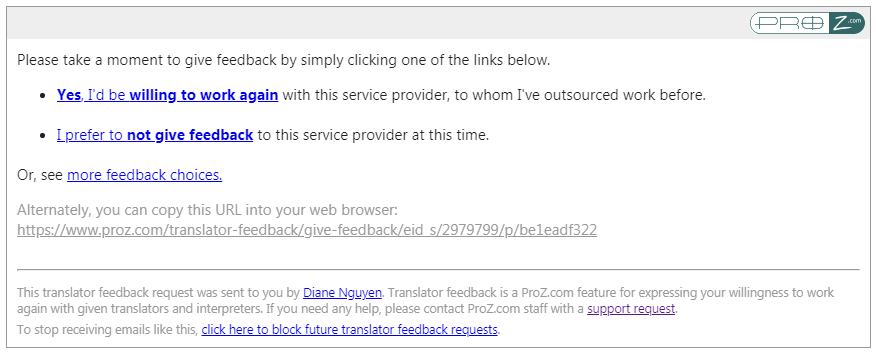
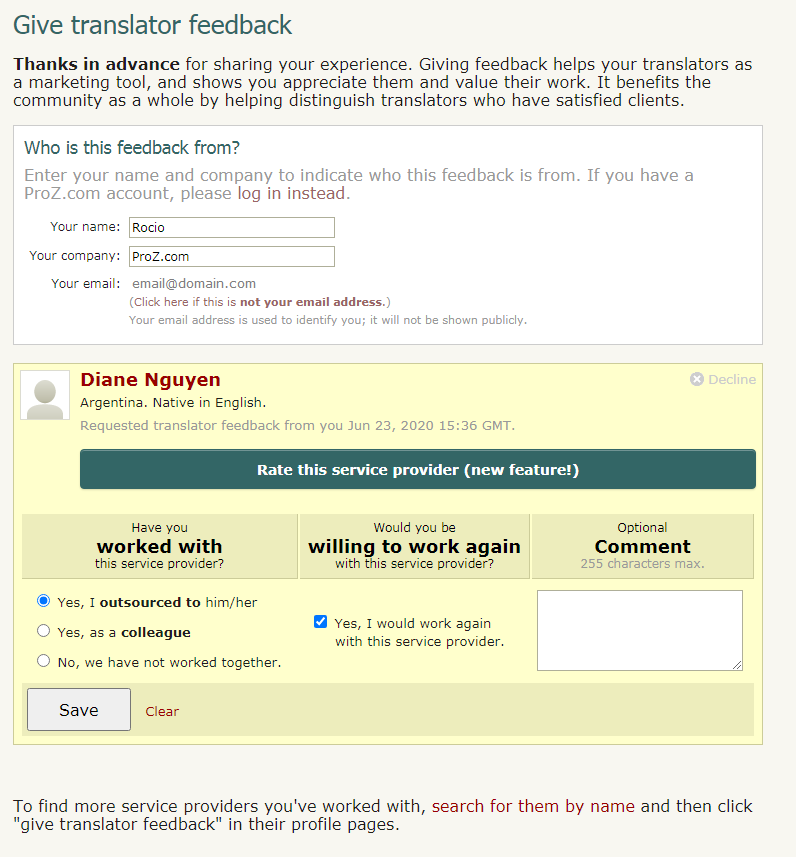
11.47 - Will banned outsources or those with open non-payment reports be permitted to leave WWA ratings? No. 11.48 - Will outsourcers be able to leave multiple WWA ratings? Outsourcers may leave one WWA rating per verifiable project. 11.49 - What if I disagree with a WWA Rating I have received? If a service provider feels a WWA rating violates the WWA ratings rules, they can open a support request. ProZ.com reserves the right to review WWA ratings on a case by case basis, and to remove any WWA rating or comment which may not conform to ProZ.com site rules & policies. 11.50 - I got a request for WWA feedback from a service provider via email, how do I provide it? At the end of the message sent by the service provider who worked with you, you will find a box with different options: The first option will allow you to provide feedback indicating that you are willing to work again with this service provider. The second option will provide you with the option to decline giving this service provider feedback at this time. And the option to see more feedback choices will allow you to choose if you want to rate this service provider. This option is only available to logged-in ProZ.com users, and if you are not logged in or do not have an account, the page will prompt you to log in or register (if you do not wish to create an account, you can still leave the translator WWA feedback without a rating). Regardless of the option chosen, the next screen will see the information below, with the selected option highlighted: In the first field you'll find your contact information as entered by the service provider. If you wish to change any of these contact details, you can do so here. In the second field, you'll find the following WWA feedback/rating options:
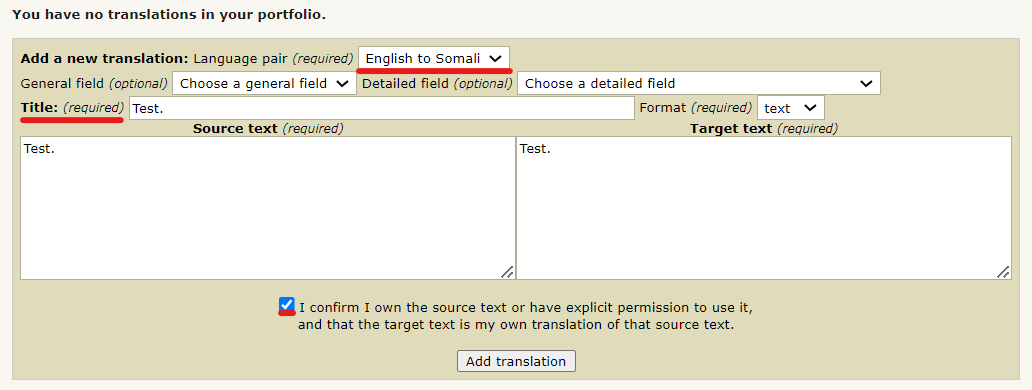
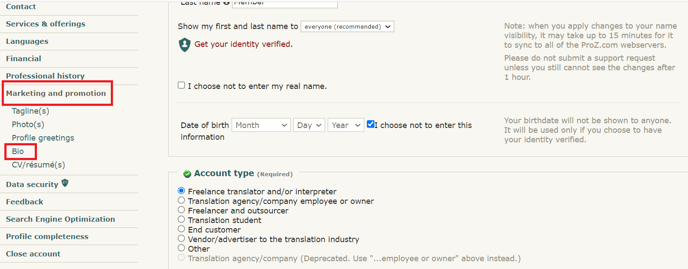
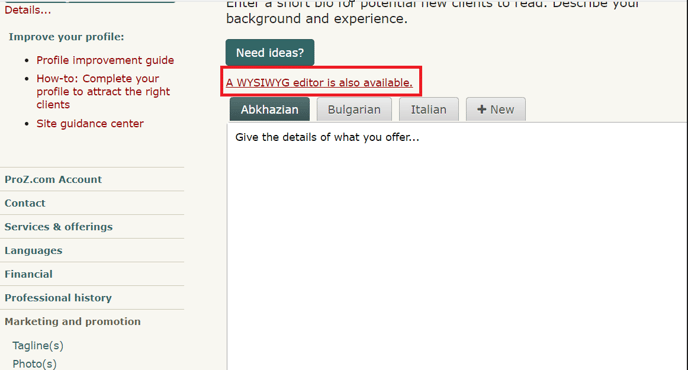
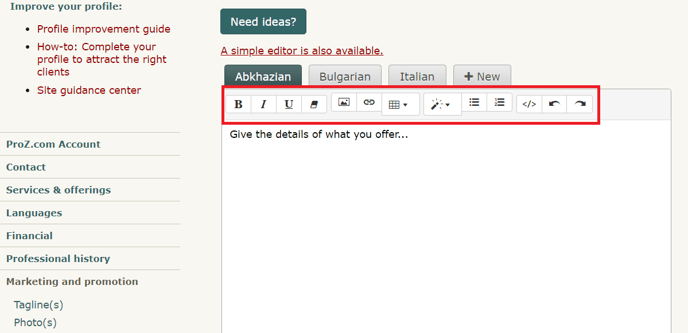
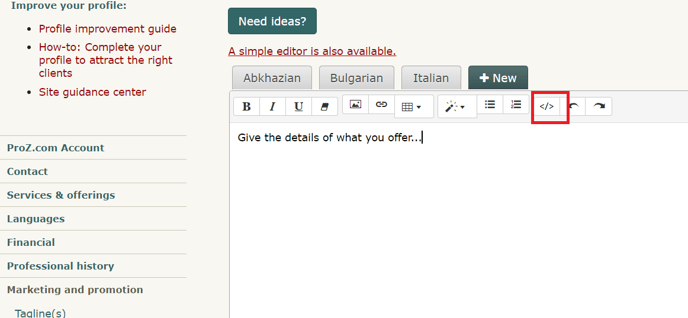
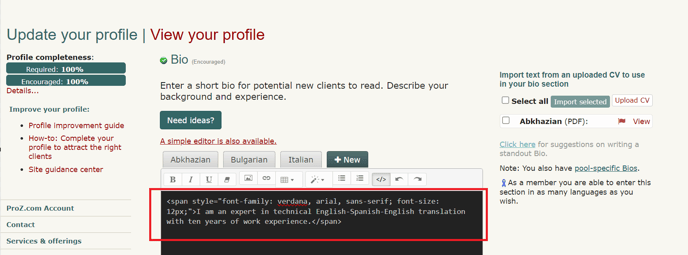
 12 - Portfolio: my sample translations 12.1 - How do I add sample translations to my Portfolio? Samples are really important, not just for profile completeness, but in order to show the quality of your work. 12.2 - How can I change the order of sample translations in my portfolio? The order of sample translations reported in profiles can be changed by selecting each sample in the list of samples in the Professional history section of the Profile updater and dragging them to the desired position, saving and updating changes after each movement by clicking on Save and update profile at the bottom of the page. 12.3 - Can I toggle the visibility of the samples in my portfolio? No. You can either choose to enter samples which will be publicly visible to visitors to your profile or choose not to enter these samples. For the latter option you can tick the box next to I choose not to enter any sample translations at this time in the Portfolio/Sample Translations in the Professional history section of your Profile updater. 12.4 - How can I respect confidentiality agreements with clients while showing sample translations in my portfolio? If a translation you have done is subject to a confidentiality agreement, avoid adding this translation to your portfolio and try adding a sample text taken from the web or elsewhere instead. Remember that sample texts do not need to be long, but that two or three paragraphs should be enough. 13 - Project History 13.1 - Šta je ProZ.com Historija projekata (SM)? ProZ.com sistem Historije projekata (SM) pruža prevodiocima i interpretatorima prikladne načine za održavanje evidencije završenih projekata, prema jeziku, oblasti i ostalim karakteristikama. Koristite ga za organizaciju svojih projekata, praćenje plaćanja itd. 13.2 - Ko može koristiti sistem Historije projekata (SM)? Svim korisnicima sajta je dozvoljeno da u potpunosti iskoriste funkcionalnost Historije projekata (SM). 13.3 - How do I add a new project to my project history? To add a new project to your project history visit your Project history page. Select the Add a new project option from the menu to the left and you will be re-directed to the project form. Complete this form with all required information and click on Submit. 13.4 - Koje se vrste projekta mogu navesti? Upotrijebite Historiju projekata (SM) kao sistem za praćenje projekata prijevoda, interpretacije, uređivanja, korekture, koje ste lično dovršili. 13.5 - Da li mogu navesti projekte koje sam dobio/-la od klijenata izvan ProZ.com-a? Da; možete navesti bilo koji projekt, bez obzira na to kako ste upoznali klijenta i bez obzira da li klijent jeste ili nije registrovan u ProZ.com-u. 13.6 - Ja / moja kompanija sam/smo nadgledali projekat. Trebam li to navesti? Ne ‒ ne trebate navoditi one projekte koje je Vaša kompanija nadgledala. Sistem Historije projekata (SM) je namijenjen za prevodioce, interpretatore, lektore i korektore kako bi vodili evidenciju o poslu kojeg su lično izvršili. 13.7 - Da li je moja Historija projekata (SM) privatna? Da ‒ prema zadanosti, samo Vi možete vidjeti informacije koje ste unijeli u svoju historiju projekata. 13.8 - Vidim historije projekata od drugih korisnika. Zašto je to tako? Postoji mogućnost da prikažete opšte detalje odabranih projekata, iz svoje historije projekata, ako to želite. Na Vašoj profilnoj stranici pojavit će se prikaz onih projekata koje ste odabrali prikazati, pod nazivom taba „Historija projekata“. Prikaz onih projekata koji predstavljaju Vaše stručne oblasti može biti efikasno marketinško sredstvo za Vaše usluge. 13.9 - Primijetio/-la sam da su nazivi klijenata ponekada prikazani u historijama projekata kod ostalih korisnika. Šta je to što određuje da li će se nazivi klijenata prikazati ili ne? Naziv klijenta je prikazan isključivo ako su obje strane saglasne da se to javno prikaže. 13.10 - Šta je „potvrda“ od spoljnog naručioca posla? Kada unesete projekt, pruža Vam se mogućnost da zatražite „potvrdu“ od spoljnog naručioca posla. Ako to zatražite, spoljni naručilac posla će imati mogućnost da potvrdi da je projekat izvršen i da je Vaš opis bio tačan. 13.11 - Na koji način funkcioniše „povratni komentar“ spoljnog naručioca posla? Još jedna dostupna opcija je da prilikom unosa projekta zatražite „povratni komentar“ od strane spoljnog naručioca. Kada se to zamoli, tada se spoljnom naručiocu posla pruža mogućnost da svoje iskustvo s Vama opiše kao „pozitivno“, „neutralno“ ili „negativno“. Također, može se unijeti i komentar od jednog retka. 13.12 - I sent a collaborator confirmation request and it seems it did not go through. What can I do? If you sent a collaborator confirmation request and your collaborator did not receive the email message requesting confirmation, try re-sending the request. To do so, click on Edit next to the project in the Project history page and enter your collaborator ID at the bottom of the project form. Re-send the invitation by clicking on Submit. 13.13 - Na koji način moja historija projekata utiče na to kako sam prikazan/-a u direktoriju? Kada klijent traži prevodioca za određeni jezik i oblast te naiđe na Vaše ime, broj *potvrđenih* projekata koje imate u toj oblasti će biti prikazan. To ne utiče na Vašu poziciju u direktoriju. 13.14 - Na koji mi način izrada vidljive selekcije moje projektne historije može pomoći da upoznam nove klijente? Klijenti se mogu uvjeriti da imate iskustva u jezičkom paru i oblasti u kojoj oni trebaju uslugu. Kada vidljivo prikažete odabir projekata na svojoj profilnoj stranici, Vi informišete potencijalne klijente o suštini svog iskustva, te opciono vodite evidenciju zadovoljnih klijenata. 13.15 - Da li mogu voditi evidenciju, ili prikaz, osoba s kojima sam sarađivao/-la na svojim projektima? Da. Ako su Vaše kolege registrovane pri ProZ.com-u (kao članovi, ili na neki drugi način), možete radi organizacije pridružiti njihova imena uz projekte. Također, možete zatražiti potvrdu za detalje o projektu i jedan redak povratnog komentara, i ako izaberete da na svojoj profilnoj stranici projekt učinite vidljivim to će biti prikazano ostalima. 13.16 - Da li mogu sakriti svoje projekte, u slučaju da dobijem negativni povratni komentar od spoljnog naručioca posla? Ne. Kada radi povratnog komentara pošaljete projekt spoljnom naručiocu posla, tada gubite mogućnost da ga uredite, izbrišete ili sakrijete. Ako Vam spoljni naručilac posla pruži pozitivan povratni komentar, tada ponovo dobijate mogućnost da izbrišete ili sakrijete projekat. 13.17 - Klijent mi je dao negativnu/neutralnu povratnu informaciju; da li postoji bilo koji način da se to ukloni/promijeni? ProZ.com se neće miješati u bilo kakve konflikte između prevodilaca i njihovih klijenata, koji se tiču Historije projekata. 13.18 - Zašto ne mogu izbrisati projekt iz svog popisa Historije projekata (SM)? Ako ste dobili neutralni ili negativni povratni komentar od spoljnog naručioca posla, nije moguće izbrisati projekt. Također, nije moguće izbrisati projekt koji čeka na potvrdu. 13.19 - Moj klijent nikada nije primio obavijest da pregleda moj projekt; da li ga oni ipak mogu nekako pregledati? Ako Vaš klijent ne dobije obavijest da pregleda projekt koji ste ste im izložili, oni ipak mogu ostaviti svoju povratnu informaciju. Da bi to učinili, mogu se prijaviti na svoj ProZ.com račun koji je povezan s njihovom Blue Board evidencijom i ostaviti Vam povratnu informaciju pri njihovom Kontrolnom centru spoljnog naručioca posla, koji se nalazi ovdje: 13.20 - Trebam li uvrstiti samo velike projekte? Ne. Veliki projekti su važni, ali opis manjeg projekta u usko definisanim područjima Vam može pomoći da pokažete svoju stručnost. 13.21 - Kako mogu unijeti projekte ako je sav moj rad povjerljivog karaktera? Potrebno je da unesete samo onoliko informacija koliko Vama odgovara. U većini slučajeva, opći opis treba biti dovoljan da prenese potrebnu informaciju bez kompromitovanja povjerljivosti. U nastavku možete pronaći primjerak Historije projekata s dva projekta koji su opisani u opštim crtama. Nijedan naziv klijenta ili brenda nije spomenut, niti su pruženi posebni detalji, a ipak potencijalni klijent može dobiti ideju o vrsti projekata koje možete obaviti. 13.22 - Ne želim tražiti potvrdu od svog klijenta; šta da radim? Nadalje, ova alatka Vam je namijenjena da je koristite prema svojim potrebama i prioritetima. Možete uključiti informacije o partnerima i klijentima, i čak od njih zatražiti potvrdu, ili izostaviti ove informacije. Možete još i zadržati svoje projekte kao sakrivene od pregleda, i ovu funkciju koristiti samo u svoje interne, administrativne svrhe. 13.23 - Ja sam interpretator, i rijetko (ili nikada) radim pismene prijevode. Historija projekata se ne odnosi na mene. Na koji način mogu upotpuniti svoj profil? Ako odete na stranicu za „Dodavanje projekta“, vidjet ćete da je jedna od opcija u padajućem okviru namijenjena za interpretacije (bez obzira što je pismeno prevođenje ponuđeno kao zadano), i prema tome možete unijeti projekt koji je zasnovan na poslu interpretacije i kojeg ste odradili, jer će to također potencijalnim klijentima pružiti bolju predstavu o vrsti poslu kojeg obavljate. 13.24 - Za sada, ne želim dodati informacije o historiji projekata. Na koji način mogu upotpuniti svoj profil? Ako odaberete opciju „Za sada, biram da ne unesem svoju historiju projekata“, s tačke gledišta dovršetka profila, odgovarajuće polje će biti procijenjeno kao „dovršeno“. Međutim, ne uključujući svoju historiju projekata Vi propuštate da iskoristite snažan marketinški alat. 14 - CV/resumé 14.1 - How do I upload a CV/resume to my profile? You can upload a copy of your CV to your profile from the Personalization section of your Profile updater. Select the language in which your CV is written, then browse your computer files system for your CV file and click on Open. Then, check the box next to I understand that uploading my CV/resume and setting its visibility to "Everyone" will allow my CV to be indexed by search engines such as Google. If I remove my CV from my profile later, it may take some time for this indexed information to also be removed from search engine caches. if you understand and agree to these terms and have set visibility permissions for your file.
Please make sure your CV is in .txt, .pdf, .doc, .docx, .rtf, or .odt format, and is no larger than 2 MB. Also, note that ProZ.com uses multiple webservers to handle user traffic. So, it is possible that when you upload anything via the Profile updater, it may take several minutes to become visible. And, remember, you can upload your CV in different languages and file formats to make sure that all potential clients visiting your profile can download it in the format that is more convenient for them and view it in a language they manage. 14.2 - I uploaded an image/CV but it is not shown or can not be dowloaded. ProZ.com utilizes more than one web server. When you uploaded an image or a CV, it can take between several minutes and a half hour for the files to be copied to all the web servers. During this time, you may notice a blank where a photo should be, or, for CVs, you may get a page not found error. Please give it some time before submitting a support request. 14.3 - How do I update/edit/replace my present CV/resume? To update your CV, go to the Personalization section of your Profile updater and scroll down to the CV/Resume section. Click on Delete next to the CV you want to update. Once removed, upload the new version of your CV by selecting the language in which your CV is written from the Upload another CV in the drop-down menu and clicking on the Browse button to search your computer's file system for the document you wish to upload. 14.4 - How do I remove an old CV? To remove your CV, go to the CV/Resume section of your Profile updater and click on Delete next to the CV you want to delete. 14.5 - How can I delete my resume/CV/photo? In your profile page, go to Settings. In the menu, choose Uploads. There, you will find a check box with the title Delete current image or Delete current Resume/CV. After checking it, click on Submit. 14.6 - The CV/resume file I uploaded to my profile is accessible from outside ProZ.com When you upload a CV/resume file to your ProZ.com profile, you must assume that the information it contains will be visible on the web —and that your file may be downloaded by anyone— unless you set visibility permissions when uploading it (i.e. unless you specify that you do not want anyone, except for other ProZ.com members, to access your CV/resume file). 14.7 - I deleted my profile/CV but Google still shows it. You should ask Google to delete that information from their Cache. You can do it here. 15 - About me 15.1 - Can I use HTML code in the About me section of my profile? Yes. You can customize the About me section in your profiles by adding HTML code and some dynamic content such as instant messaging tools, clocks, hit counters, etc. Check the quick guide for creating ProZ profiles using HTML code tutorial to obtain some special effects. 15.2 - How can I localize the content of the About me section of my profile? You can localize the content of your About me and other profile areas through the Profile localization tab. You can also get to this page by clicking on Localize your content in the Settings tab of your profile. 15.3 - There are extra line breaks in my profile and I can not get rid of them. What should I do? Here is why: every line break entered in the profile background form gets converted into a br tag in the html. In order to prevent the large spaces, you can not enter line breaks (by hitting enter) after your td and tr tags. This is not pure HTML, and we did it so that those without HTML experience could make reasonable profiles. Sorry for causing this confusion. 15.4 - How can I edit the About Me section of my profile? To edit your About Me, head to your Profile updater, and, under Marketing and Promotion, click on Bio. Make sure to click on the Save button below the Bio editor before leaving the page. If you want to add colors, tables, or other rich format features that are not available in the WYSIWYG editor, you can edit the format manually using HTML code. To do this, click on "Code view" and edit the HTML source. After you have finished editing the HTML, go back to the rich text view by clicking the same button, and then save your changes. You can learn how to add colors, as well as other simple HTML attributes, with this HTML tutorial. You may check all steps via this video. 16 - Availability calendar 16.1 - What is the availability calendar? Your ProZ.com availability calendar lets you indicate to potential clients your approximate availability to take on new work. It is shown in your profile page and in various other places throughout the site. 16.2 - What is the value of indicating my availability? Outsourcers with urgent projects can search for those who have indicated they are immediately available for new work. Specifying that you are available helps you appear in these searches. On the other hand, if you are currently busy, indicating that you are not available can help prevent you from being contacted with such requests. It can also be helpful to give potential clients and collaborators a rough idea of what your upcoming schedule looks like. 16.3 - How can I specify my availability? Specify your availability in your availability calendar, reachable by clicking the small round availability indicator icon next to your name at the top of each page, or by clicking here. 16.4 - How is capacity used in the availability calendar? When you set your average sustainable capacity in words per day (WPD), your availability calendar will also automatically display approximately how many words you can process on any particular day. 16.5 - How are working hours used in the availability calendar? Your standard working hours and time zone are displayed at the top of your availability calendar, along with information about differences between your time zone and the person viewing your calendar. 16.6 - What is Availability remaining in current work day, and why is it different than the availability specified in my calendar? If the options Consider me unavailable outside of working hours or Consider me unavailable on weekends are selected in your calendar settings, your availability remaining in the current work day is automatically calculated, and shown above your availability calendar. For example, if you specified that you are 100% available today, and that you have a capacity of 3000 WPD, when your work day is half over your Availability remaining in current work day will indicate Partially available (1500 words). 17 - Profile tabs 17.1 - My Visitors tab 1.1 - What is the Visitors tab? The Visitors tab is for members only. The Visitors tab works like a hit counter, but does so much more than a traditional hit counter. The Visitors tab allows profile owners to keep track of how many hits they've received in the last 30 days, but it also provides information about who, what, where, and when their profile was visited. 1.2 - What are the options to display crawlers' visits at the Visitors tab? The Visitors tab provides the following options for site users to filter the crawlers' visits results:
These options displayed at the bottom of the Visitors tab. Also, users can hide visitors information by clicking on [ Hide this visitor ] in the Action column. To restore a hidden visitor's visibility click on List excluded visitors button (at the bottom of the page), find an IP of a hidden visitor you want to make visible again and click on [ Remove this visitor ]. 1.3 - Who has access to my Visitors tab? No one other than you (the owner) has access to your Visitors tab. 1.4 - Does the Visitors tab count my own visits? No. Presently, the Visitors page does not count your visits when you come to your profile page. 1.5 - Will anyone see my username or entity ID on their Visitors tab? The Visitors tab does not indicate who exactly visited your page by username or entity ID. Likewise, when you visit a user's profile, they will not be able to see your username or entity ID on their Visitors tab. The Visitors tab only displays the viewer type. Also, the Visitors tab will indicate whether the viewer is a site member (highlighted in blue), ID verified, and the viewer's location as indicated by their IP address. Finally, the Visitors tab will indicate where the viewer came from, tabs viewed, last time visited, and the total number of times the visitor has been to your profile page. 1.6 - Will anyone be able to link to my profile page from their Visitors tab? No. The owner will not be able to link to your profile page form their Visitors tab. The owner will only have access to your IP address's location. 1.7 - Someone is coming to my visitors tab multiple times, should I be worried? Those visits are probably coming primarily from a search engine crawler, which is what goes out and spiders the internet for pages to be searchable.The visitor you had those multiple visits from is actually MSN, Yahoo or Google. So basically, no need for alarm, a machine is visiting your profile numerous times, not a human. 1.8 - What does the checkmark under the viewer type signify? The checkmark under the viewer type signifies that visitor has been ID verified. Some of your visitors may or may not be ID verified; therefore, not all visitors will have checkmarks in that column. To find out more about getting ID verified, please read FAQ #8 in this section (Profile Page). 1.9 - What does it mean by Viewed? The Viewed column indicates which tabs the viewer clicked on in your profile, or in other words, pages viewed of your profile. Presently, only three or less tab visits will be shown in this column. 1.10 - What exactly does the Came From column identify? The Came From signifies what page the viewer used to locate your profile. Whether they searched you on Google or clicked on your featured pro profile from the homepage, you'll see it under this column. 1.11 - How do I add a hit counter to my profile page? There are many sites that offer hit counter code that you can put into your profile page to track and display how many people visit you. 17.2 - Custom tabs 2.1 - What are custom tabs? Custom tabs are extra tabs users and members can add to their profiles to provide additional information. Site members can add up to 3 extra custom tabs while non-members can add only one. 2.2 - Why should I consider adding a custom tab? Custom tabs can be a good way of providing more or specialized information about your services or qualifications as a language professional. 2.3 - How do I add a custom tab to my profile? To add a custom tab to your profile, head to the Custom tabs section of your profile from the Settings tab of your profile. 2.4 - How do I change the name of a custom tab? You can edit a custom tab name any time you want, by going back in to the Custom tabs section of your profile from the Settings tab; and clicking on the edit icon next to the tab name you want to change. 2.5 - How do I add an image to a customised tab on my profile? To show an image in a custom tab (a scanned copy of a certificate, a photo, etc.), first you will have to upload the image to an image hosting website such as http://www.imagehosting.com/ or http://imageshack.us/. 2.6 - How do I remove a custom tab? To remove a custom tab you have created, go to the Custom tabs section of your profile from the Settings tab and click on the small x next to the title of the tab you want to remove. 18 - ProZ.com Wallet
18.1 - What is my ProZ.com wallet for? Your ProZ.com wallet is used to track payments you have made for items and services purchased through the site. Your wallet is not intended as a payment method or for use in transferring funds from one account to another. 18.2 - Kako mogu primati uplate preko svoje stranice ProZ.com profila? Nažalost, mogućnost za ProZ.com uplate (gornji desni ugao na stranicama profila) nije više dostupna. 18.3 - Kakve su naknade za korištenje ProZ.com novčanika? Tu je, u većini slučajeva, naknada od 5 % koju dodatno naplaćujemo uz naknade kod pojedinih načina transfera (npr. 5,5 % naknade uzete kreditnom karticom firme, 35 $ naknade uzete od banke preko transfera na bankovni račun itd). Mi uzimamo 5 % samo jednom; kada „povlačite“ novac iz svog novčanika, neće Vam biti naplaćeno 5 %. 18.4 - How can I make a wallet deposit? To make a wallet deposit start here (or click on Add Money to your Wallet in your profile wallet). Then, click on the amount you would like to deposit ($20 USD, $30 USD or $60 USD) and you will arrive at the purchase wizard. Enter your billing information and select a payment method for your deposit. 18.5 - Kada se vrše povlačenja iz novčanika? Možete izdati zahtjev za povlačenje sredstava iz svog novčanika u bilo koje vrijeme, s tim da se povlačenja generalno obrađuju na kraju mjeseca. Ako biste željeli da provjerite status uplate, najbolji način da to uradite je s podnošenjem zahtjeva za podršku. 18.6 - What are the fees associated with wallet withdrawals? ProZ.com does not charge a fee for processing wallet withdrawals, but you are responsible for paying any third-party transaction fees. Because some withdrawal methods incur higher transaction costs, those methods require a minimum withdrawal amount in order to cover the transaction costs.
18.7 - How can I use funds received for Turn-key translations? Funds received in your wallet for Turn-key translations function as regular wallet deposits. This means that they can be used towards your purchase of ProZ.com membership. They can also be withdrawn from your wallet. 19 - Dynamic profile content 19.1 - Why might some ProZ.com profiles include user-supplied dynamic content (javascript)? Some users have chosen to customize their ProZ.com profiles with dynamic content such as instant messaging tools, clocks, hit counters, etc. This dynamic content may be implemented in a scripting language such as javascript, which can be run by the viewer's web browser. 19.2 - What are the risks of accepting dynamic content (i.e. running javascript) from a profile owner? Although such content is common on the internet and is likely harmless, there is a possibility that security risks may be involved. For example, a cross-site scripting attack might allow the profile owner to gain unauthorized access to the viewer's ProZ.com account. (See this cross-site scripting article on Wikipedia for details.) 19.3 - How is dynamic profile content handled by ProZ.com? If a ProZ.com profile contains dynamic content, a notice is shown at the upper-right of the page, indicating whether the dynamic content is enabled or disabled. 19.4 - How can I control whether dynamic content is enabled when I view a profile? If the profile owner is a ProZ.com member, the first time you view the profile you'll be prompted whether to enable the dynamic content. Your preference will be stored in a cookie in your web browser, so you won't be prompted again when viewing that member's profile in that browser. If you later wish to change your preference, and enable or disable the content, click the Settings link in the dynamic content notice at the upper right of the page. 19.5 - How can I add my instant messenger status to my profile? You can show your instant messenger status in your profile without including customized javascript. Go to the Contact tab of your Profile updater to edit the instant messenger settings. If your instant messenger program isn't supported on that page, submit a support request to have it added to the list. 19.6 - How can I include my Twitter feed in my profile? You can include your Twitter feed in your profile from the Contact tab of your Profile updater. Just click on the Social networks (LinkedIn, Twitter, Facebook) tab and enter the necessary information. 19.7 - How can I include a hit counter and visitor analysis in my profile without customized javascript? ProZ.com members have access to a profile hit counter and visitor analysis tool. See the Visitors tab on your profile page. 19.8 - Can I include CSS in my profile? ProZ.com still doesn't allow CSS and Javascript code use in profiles. 19.9 - Are iframes considered dynamic content? Yes, iframes are also considered dynamic content, and are handled the same way as javascript. 20 - Profile referrals 20.1 - What are profile referrals? Profile referrals are member sources that are crosslinked to your profile and shown at the bottom right corner of your main profile page. 20.2 - What are the benefits of showing referrals in my profile? Profile crosslinking / member referrals allow you to exchange links with ProZ.com members working in other languages or fields, whose work you know to be of a high standard. This could work to your benefit as it would shows you as part of the ProZ.com community, sharing with other professionals. 20.3 - How do I enter referrals in my profile? You can enter referrals from your Referrals page or by clicking on Referrals under the Settings tab in your profile. Simply enter another member's ID in the Add new referral box en then click on Select. This will allow you top chose a field and a language pair for which the other member can be a reference and a comment. Once you click on Save, the referral will show in the Referrals section of your profile page. 20.4 - How can I delete or hide a referral? You can hide or delete a referral by clicking on Hide this referral or Delete this referral in your Referrals page. 21 - | Request help Site documentation The member services and support team  Jared  Lucia  Helen  Yana  Karen  Hayjor  Andrea  Naiara  Joseph  Saint  Valentin  Laura  Erika  Agostina  Ana |
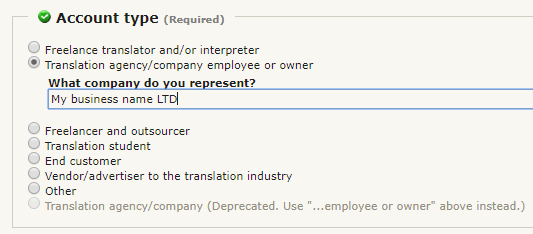
 icon usually shown below or next to the profile feature. This will directly take you to the section you would like to update.
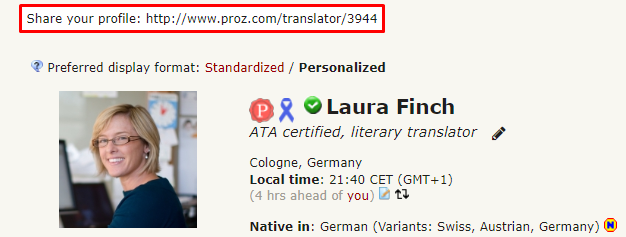
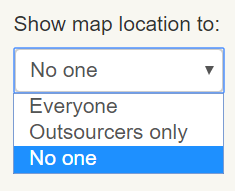

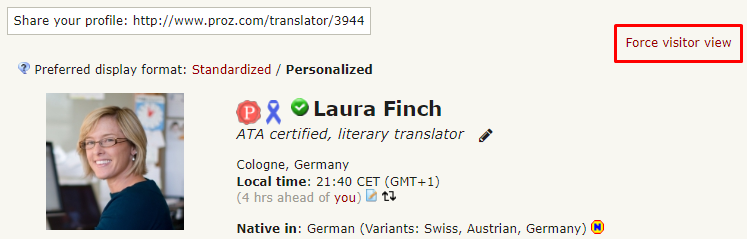
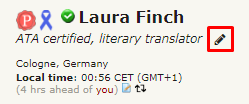


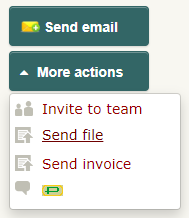
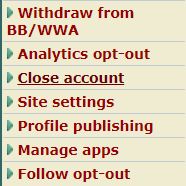
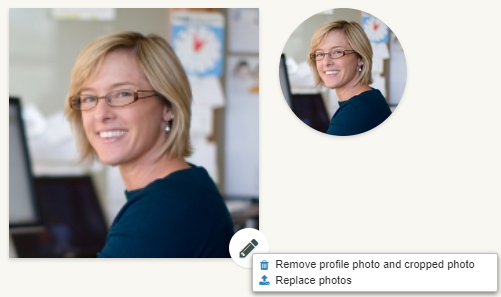

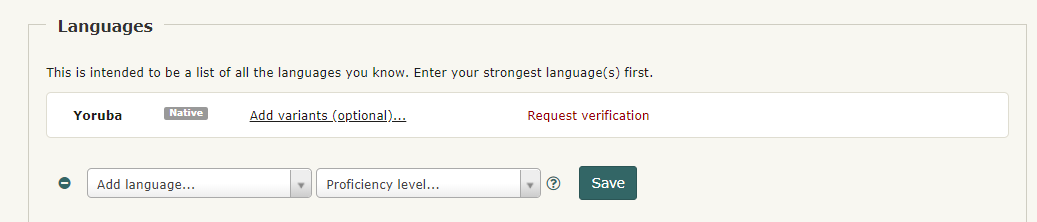
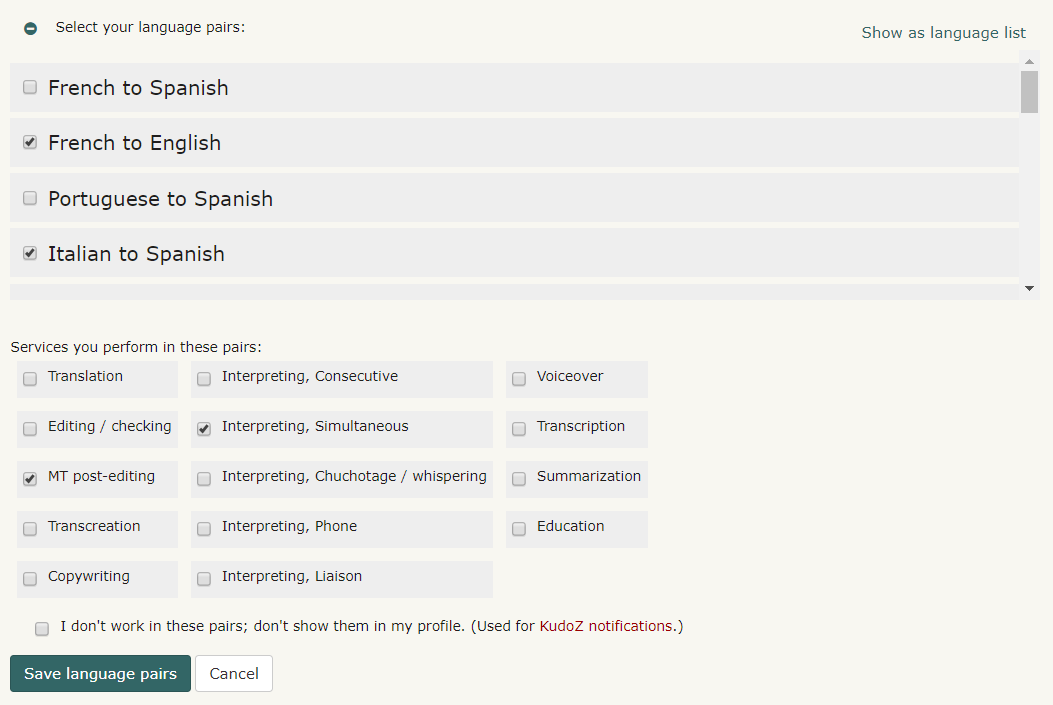

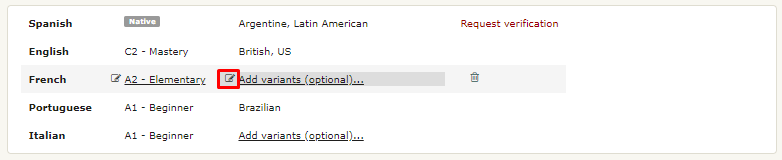
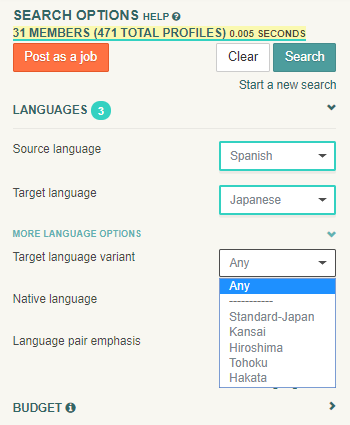
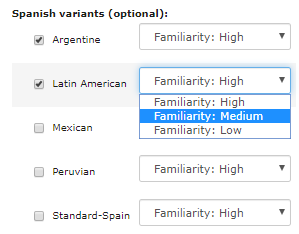

 ruski
ruski ) se koristi da predstavi nativne jezike koji su prijavljeni, ali nisu potvrđeni. To uključuje nativne jezike koji su prijavljeni od strane onih osoba koje nisu članovi, čak i onda kada one prijavljuju samo jedan nativni jezik.